Overview
The Homeroom Sections module in the Faculty Portal is the central hub for Faculty members assigned as Homeroom Section Advisers. It gives advisers a single view of their assigned section.
From here, teachers can access student profiles, check attendance, review classes, and perform adviser-related tasks.
Accessing Your Homeroom Section
- From the Faculty Dashboard, click on the Homeroom Sections tile.
- Your assigned Homeroom Sections for the active school year and term displays.
Homeroom Sections Page Interface
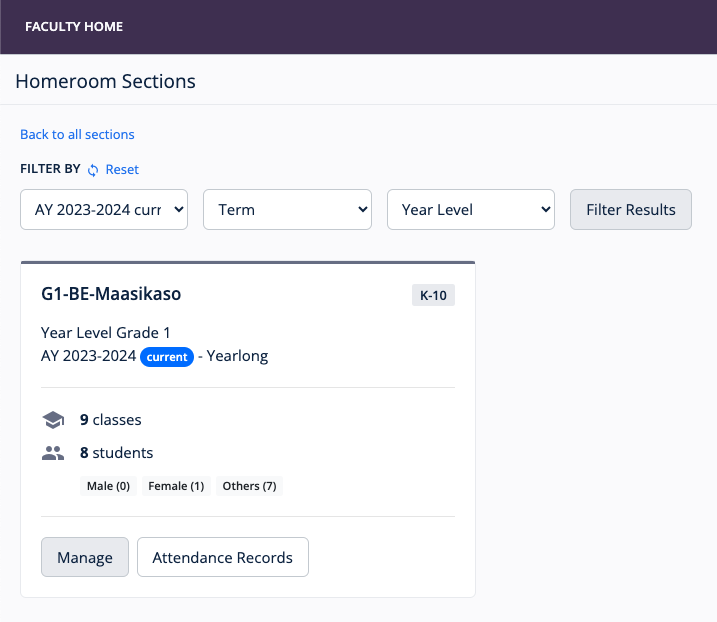
The Homeroom Sections page provides a summary of each section you advise. Each record shows:
- The number of classes under the section
- The total number of students, with counts by gender
- Action buttons for Manage and Attendance Records
Managing a Homeroom Section
The Manage option opens the Homeroom Section page. From here, you can:
- View Student Roster – See all enrolled students.
- Attendance Records – Go to the Attendance Sheet page.
- Promotion Statuses – Tag students for promotion or retention. For schools with promotion and retention rules, this module is disabled.
- Enrollment Statuses – Mark students as Enrolled or Enlisted. For schools with enlistment and enrollment rules, this module is disabled.
- Download Class List (CSV/PDF) – Export the roster.
Summary
Homeroom Sections view serves as the adviser’s workspace for student monitoring and year-end management. It centralizes attendance, grades, and promotion functions, helping teachers manage their section efficiently from a single page.